
Meta Ads UTM Parameters
Meta Ads UTM Parameters Final UTM Preview: *Thi...

Google Ads UTM Parameters
Campaign Type (for navigation)
Final UTM Preview: *This is applicable for all Search Campaigns
| utm_source=gads&utm_medium=cpc&utm_campaign={campaignid}&utm_adgroup={adgroupid}&utm_content={creative}&utm_term={keyword}&g_mt={matchtype}&g_nw={network}&g_dv={device} |
UTM Parameters
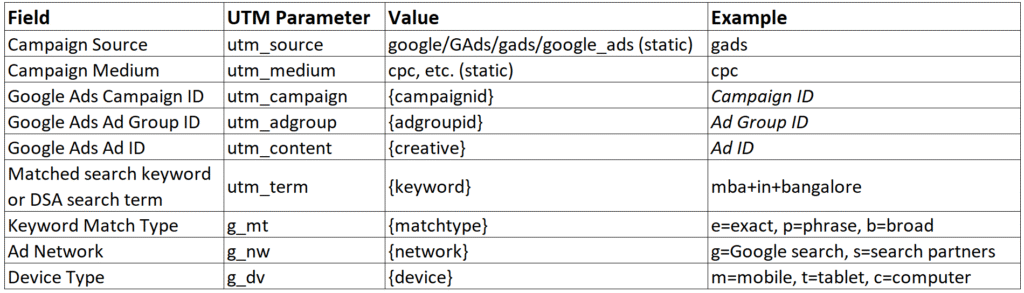
| Field | UTM Parameter | Value | Example |
| Campaign Source | utm_source | google/GAds/gads/google_ads (static) | gads |
| Campaign Medium | utm_medium | cpc, etc. (static) | cpc |
| Google Ads Campaign ID | utm_campaign | {campaignid} | Campaign ID |
| Google Ads Ad Group ID | utm_adgroup | {adgroupid} | Ad Group ID |
| Google Ads Ad ID | utm_content | {creative} | Ad ID |
| Matched search keyword or DSA search term | utm_term | {keyword} | mba+in+bangalore |
| Keyword Match Type | g_mt | {matchtype} | e=exact, p=phrase, b=broad |
| Ad Network | g_nw | {network} | g=Google search, s=search partners |
| Device Type | g_dv | {device} | m=mobile, t=tablet, c=computer |
Following are the steps for the Search campaign: Note: These parameters can be added at either the Campaign level, Ad Group level, or Ad level, but ensure they are firing only once for any Ad.
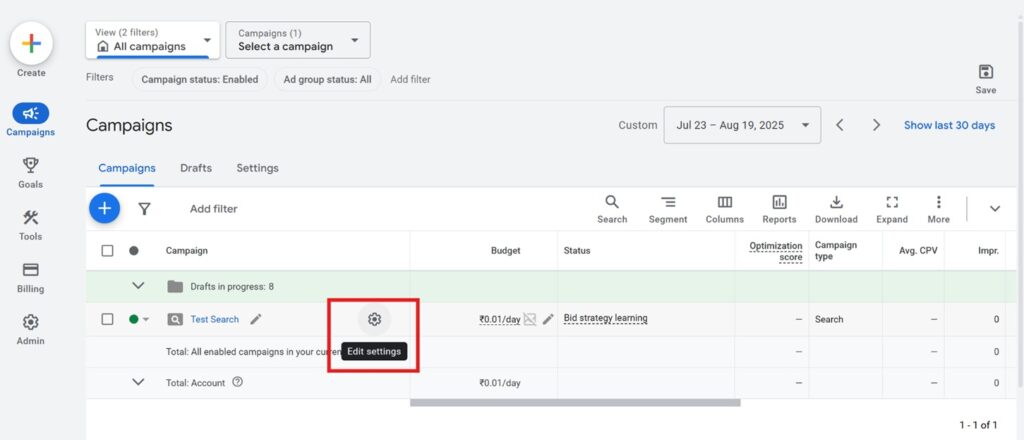
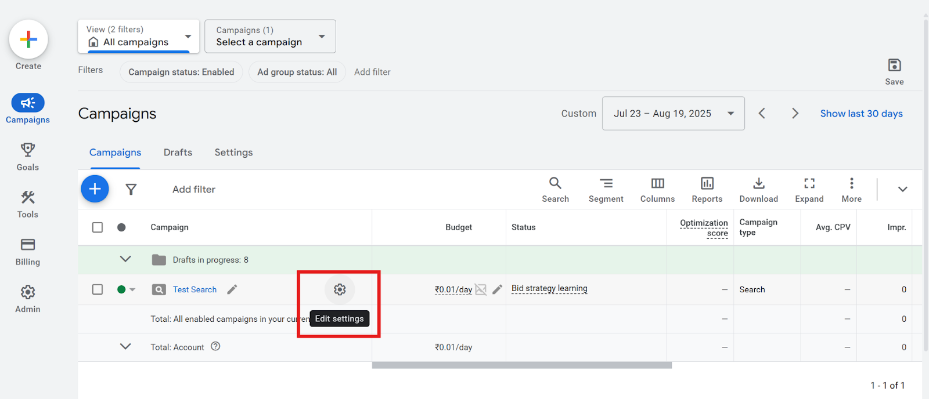
Step 1: Click on Edit Settings of the Search Campaign
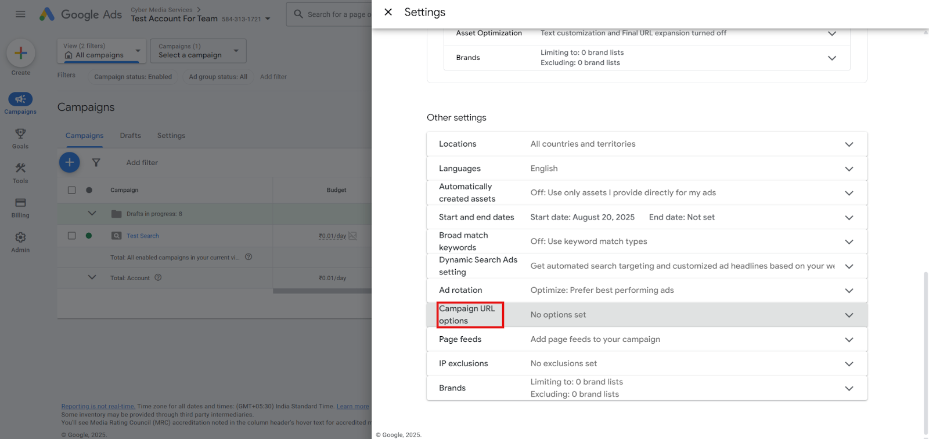
Step 2: Navigate to Other Settings -> Campaign URL options
Step 3:Paste the UTM parameters shared for Search Campaign in the Final URL suffix, as shown below
Preview: utm_source=gads&utm_medium=cpc&utm_campaign={campaignid}&utm_adgroup={adgroupid}&utm_content={creative}&utm_term={keyword}&g_mt={matchtype}&g_nw={network}&g_dv={device}
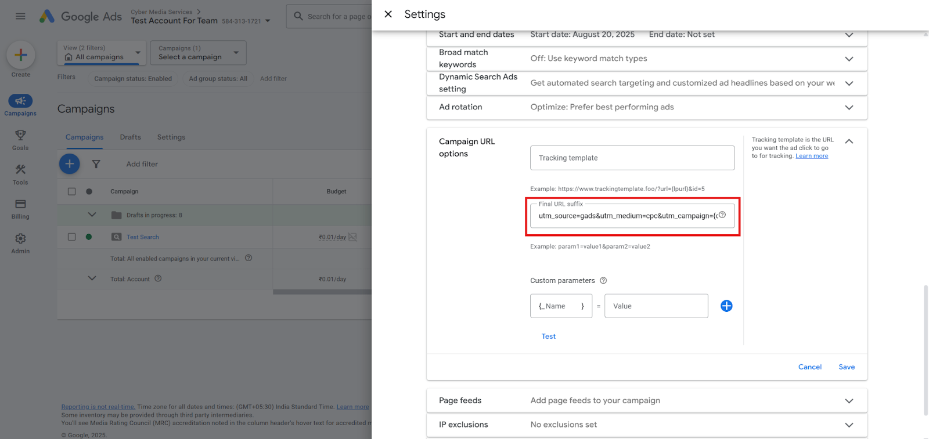
Step 4: Click on Save
Campaign Type: Performance Max
Final UTM Preview: *This is applicable for all Performance Campaigns
| utm_source=gads&utm_medium=performance_max&utm_campaign={campaignid}&utm_assetgroup=assetgroupid&g_nw={network}&g_dv={device}&g_adtype={adtype}&g_pid={product_id} |
UTM Parameters
| Field | UTM Parameter | Value | Example |
| Campaign Source | utm_source | google/GAds/gads/google_ads (static) | gads |
| Campaign Medium | utm_medium | performance_max (static) | performance_max |
| Google Ads Campaign ID | utm_campaign | {campaignid} | Campaign ID |
| Google Ads Asset Group ID | utm_assetgroup | asset group id (manually) | Asset Group ID |
| Ad Network | g_nw | {network} | g, s, d, yt, etc. OR x OR will return no entry |
| Device Type | g_dv | {device} | m=mobile, t=tablet, c=computer |
| Format of dynamically generated ad | g_adtype | {adtype} | The type of ad that was clicked on. – “pla” if the click is coming from a Shopping ad. – “pla_multichannel” if the clicked Shopping ad included options for both “online” and “local” shopping channels. – “pla_with_promotion” if the clicked Shopping ad displayed a merchant promotion. – “pla_with_pog” if the click is coming from a Purchases on Google-enabled Shopping ad. OR will return no entry |
| Merchant Center Product ID | g_pid | {product_id} | XYZ789 OR will return no entry |
Following are the steps for the Search campaign: Note: These parameters can only be added at the Asset Group level, and only after the Asset Group has been published.
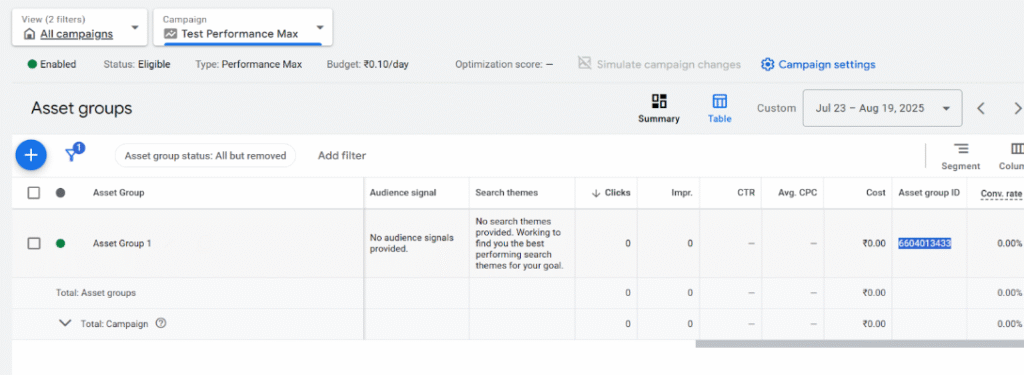
Step 0: Copy the Asset Group ID once the Asset Group is published, as shown below.
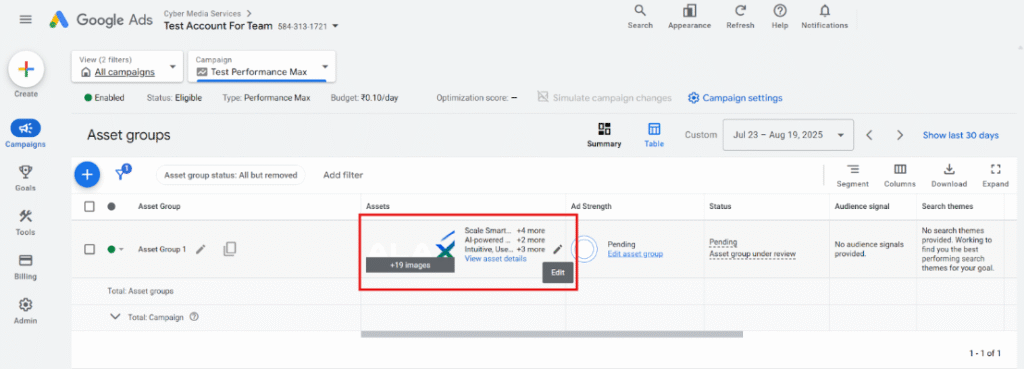
Step 1: Click on the Edit button at the Assets level of the Asset Group, as shown below.
Step 2: Navigate to Other Options -> Final URL suffix, located at the very end of the Edit assets.
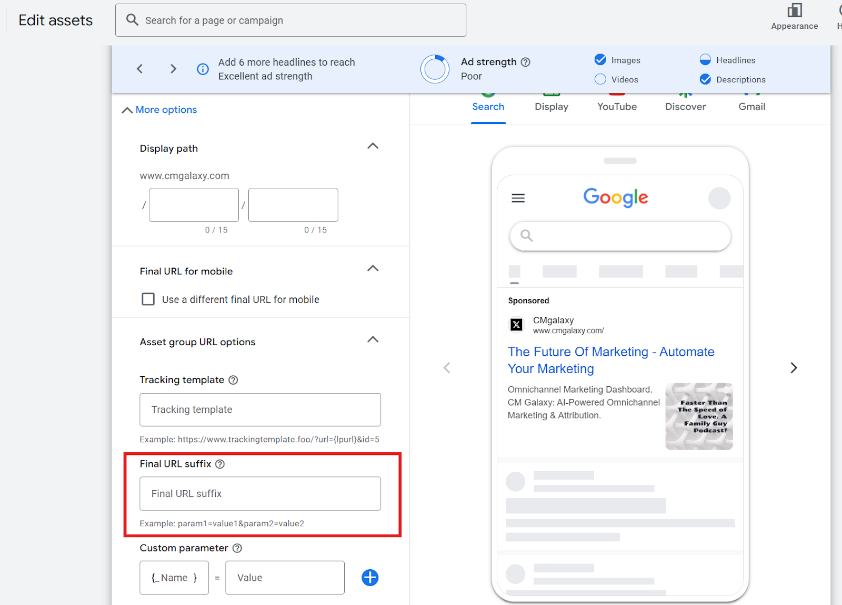
Step 3:Paste the shared UTM parameters for the Performance Max Campaign into the Final URL Suffix, placing the Asset Group ID copied in Step 0 after “utm_assetgroup=“, as shown below.
Asset Group ID: 6604013433 (example)
Unedited UTM Parameter: utm_source=gads&utm_medium=performance_max&utm_campaign={campaignid}&utm_assetgroup=assetgroupid&g_nw={network}&g_dv={device}&g_adtype={adtype}&g_pid={product_id}
Edited UTM Parameter: utm_source=gads&utm_medium=performance_max&utm_campaign={campaignid}&utm_assetgroup=6604013433&g_nw={network}&g_dv={device}&g_adtype={adtype}&g_pid={product_id}
Final UTM preview: utm_source=gads&utm_medium=performance_max&utm_campaign={campaignid}&utm_assetgroup=6604013433&g_nw={network}&g_dv={device}&g_adtype={adtype}&g_pid={product_id}
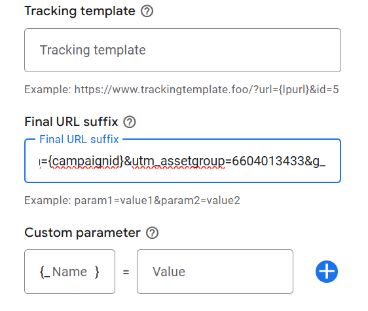
Step 4: Click on Save
Final UTM Preview: *This is applicable for all Search Campaigns
| utm_source=google&utm_medium=demand_gen&utm_campaign={campaignid}&utm_adgroup={adgroupid}&utm_content={creative}&g_nw={network}&g_dv={device}&g_pid={product_id} |
UTM Parameters
| Field | UTM Parameter | Value | Example |
| Campaign Source | utm_source | google/GAds/gads/google_ads (static) | gads |
| Campaign Medium | utm_medium | demand_gen/demandgen (static) | demand_gen |
| Google Ads Campaign ID | utm_campaign | {campaignid} | Campaign ID |
| Google Ads Ad Group ID | utm_adgroup | {adgroupid} | Ad Group ID |
| Google Ads Ad ID | utm_content | {creative} | Ad ID |
| Ad Network | g_nw | {network} | g, s, d, yt, etc. OR x OR will return no entry |
| Device Type | g_dv | {device} | m=mobile, t=tablet, c=computer |
| Merchant Center Product ID | g_pid | {product_id} | XYZ789 OR will return no entry |
Following are the steps for the Search campaign: Note: These parameters can be added at either the Campaign level, Ad Group level, or Ad level, but ensure they are firing only once for any Ad.
Step 1: Click on Edit Settings of the Search Campaign
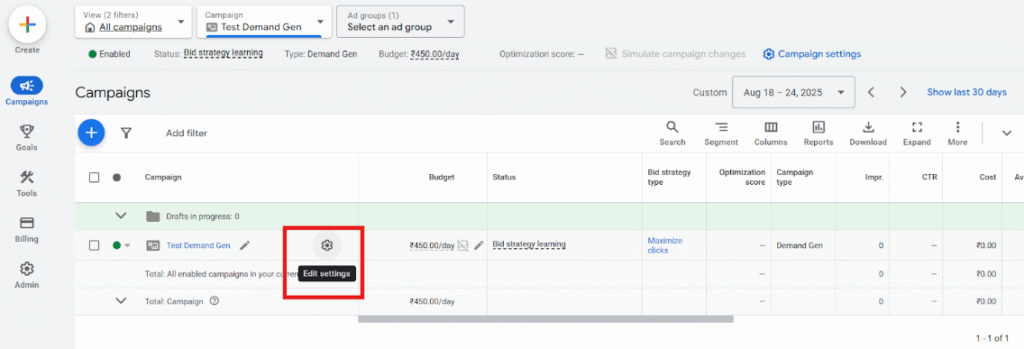
Step 2:Navigate to Campaign URL options
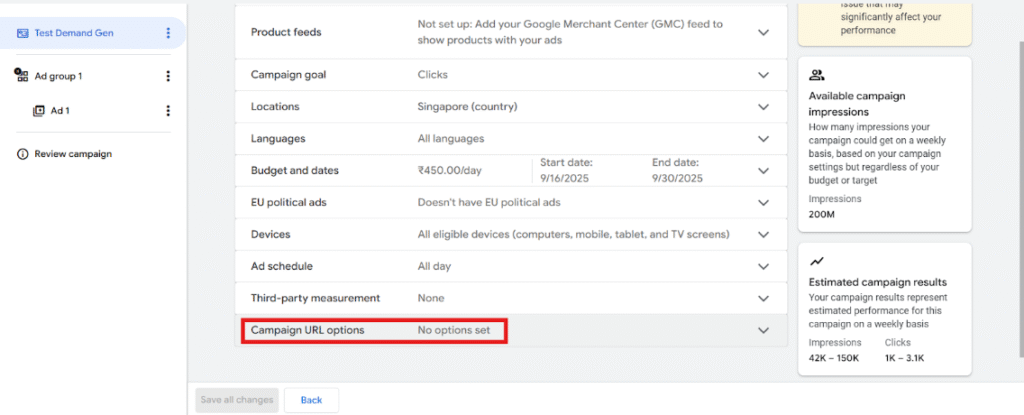
Step 3: Preview: utm_source=google&utm_medium=demand_gen&utm_campaign={campaignid}&utm_adgroup={adgroupid}&utm_content={creative}&g_nw={network}&g_dv={device}&g_pid={product_id}
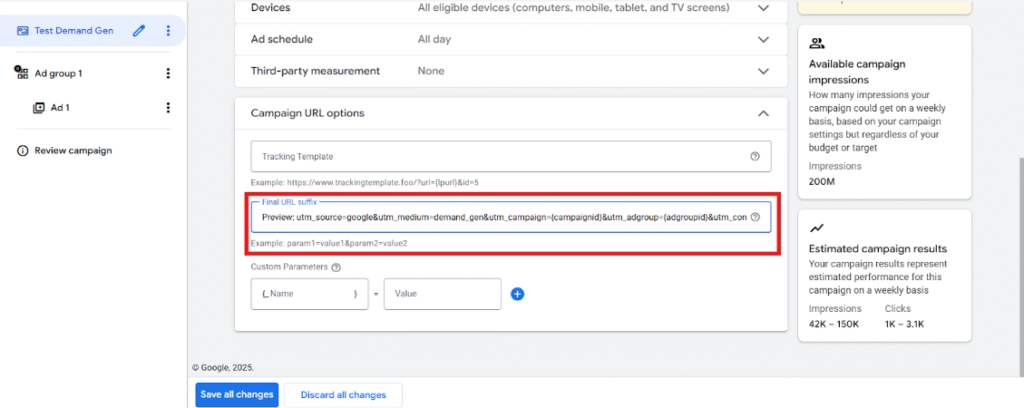
Step 4:Click on Save all changes
Final UTM Preview: *This is applicable for all Standard Shopping Campaigns
| utm_source=google&utm_medium=shopping&utm_campaign={campaignid}&utm_adgroup={adgroupid}&utm_content={creative}&g_nw={network}&g_dv={device}&g_adtype={adtype}&g_pid={product_id} |
UTM Parameters
| Field | UTM Parameter | Value | Example |
| Campaign Source | utm_source | google/GAds/gads/google_ads (static) | gads |
| Campaign Medium | utm_medium | shopping (static) | shopping |
| Google Ads Campaign ID | utm_campaign | {campaignid} | Campaign ID |
| Google Ads Ad Group ID | utm_adgroup | {adgroupid} | Ad Group ID |
| Google Ads Ad ID | utm_content | {creative} | Ad ID |
| Ad Network | g_nw | {network} | g, s, d, yt, etc. OR x OR will return no entry |
| Device Type | g_dv | {device} | m=mobile, t=tablet, c=computer |
| Format of dynamically generated ad | g_adtype | {adtype} | The type of ad that was clicked on. – “pla” if the click is coming from a Shopping ad. – “pla_multichannel” if the clicked Shopping ad included options for both “online” and “local” shopping channels. – “pla_with_promotion” if the clicked Shopping ad displayed a merchant promotion. – “pla_with_pog” if the click is coming from a Purchases on Google-enabled Shopping ad. OR will return no entry |
| Merchant Center Product ID | g_pid | {product_id} | XYZ789 OR will return no entry |
Following are the steps for the Search campaign: Note: These parameters can only be added at the Campaign level
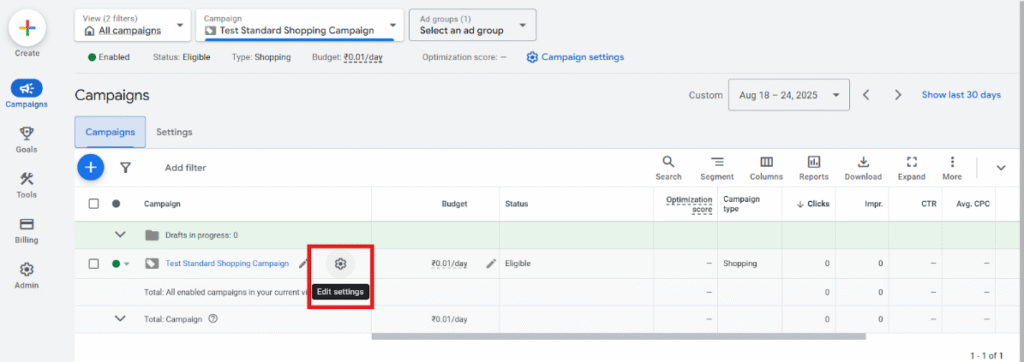
Step 1: Click on Edit Settings of the Search Campaign
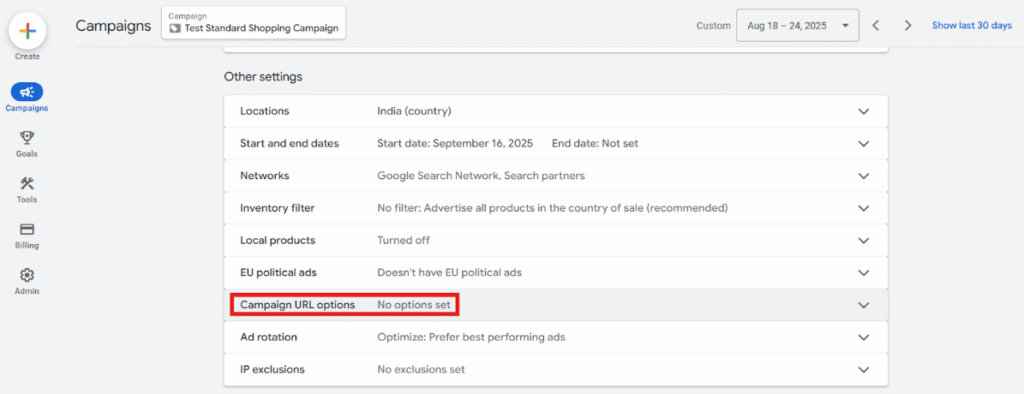
Step 2: Navigate to Other Settings -> Campaign URL options
Step 3: Paste the UTM parameters shared for Search Campaign in the Final URL suffix, as shown below
Preview: utm_source=google&utm_medium=shopping&utm_campaign={campaignid}&utm_adgroup={adgroupid}&utm_content={creative}&g_nw={network}&g_dv={device}&g_adtype={adtype}&g_pid={product_id}
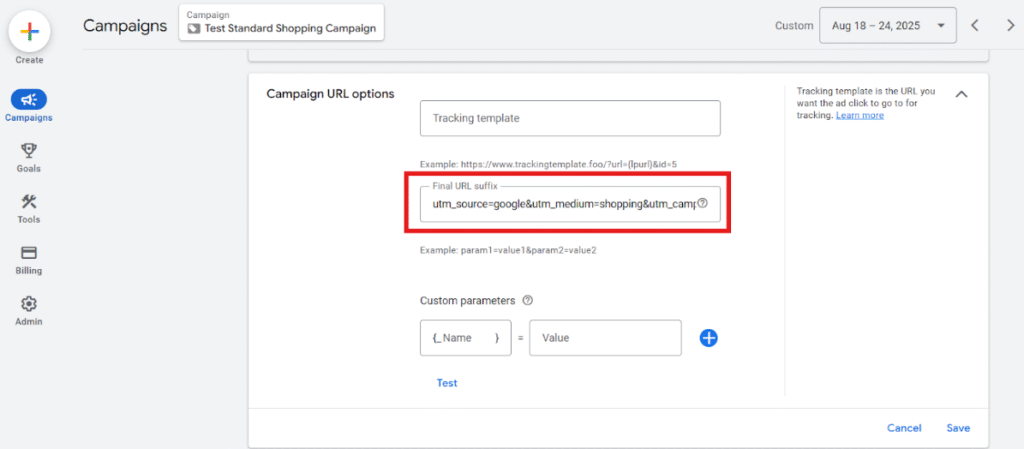
Step 4: Click on Save